.svg)

.png)

Feature
Upgrade Your Team Structure: How to Define User Roles in heylogin

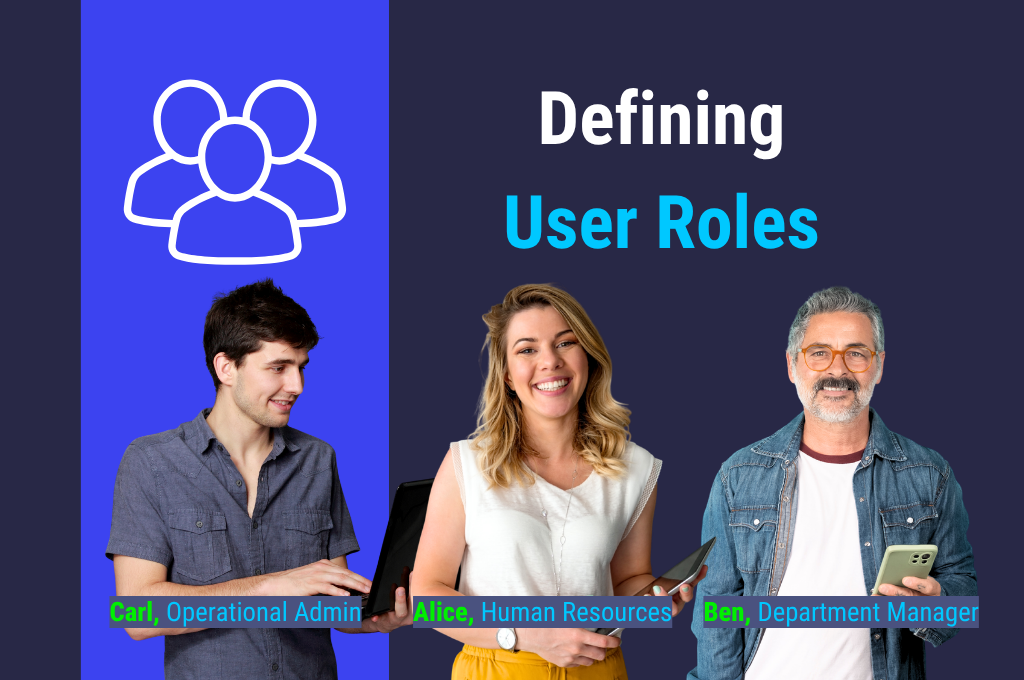
The responsibility of an admin can feel heavy at times. Admins are the power unit of the system – but what does “admin” actually mean?
In heylogin, admins have full access privileges: they can modify the organization’s and plan’s structure, add or remove members, and grant access to logins and teams.
However, not every co-worker should be responsible for these tasks – or be at risk of accidentally changing something.
That’s why it makes sense to assign different user roles.
Predefined Roles – User vs. Admin
In the standard version of heylogin, there are two main roles to choose from: User and Admin.
While admins have full access, users have more limited permissions.
Here’s a comparison of the two roles:
Users can …
- Add and manage their personal logins
- Work within approved teams
- Access the organization’s shared logins
Admins can …
- Manage all logins and teams and grant access
- Add and remove team members
- Modify the organization’s basic settings and plan
- Appoint other admins
Custom Roles (RBAC) for Enterprise Clients
The larger the company, the more complex its team structures tend to become. With our Enterprise plan, clients with 50+ co-workers can extend the predefined roles by customizing their own. We call them custom roles (RBAC: Role-Based Access Control).
This makes it possible to give each co-worker access to specific, task-related areas while granting only the permissions they really need.
Let’s look at three example cases.
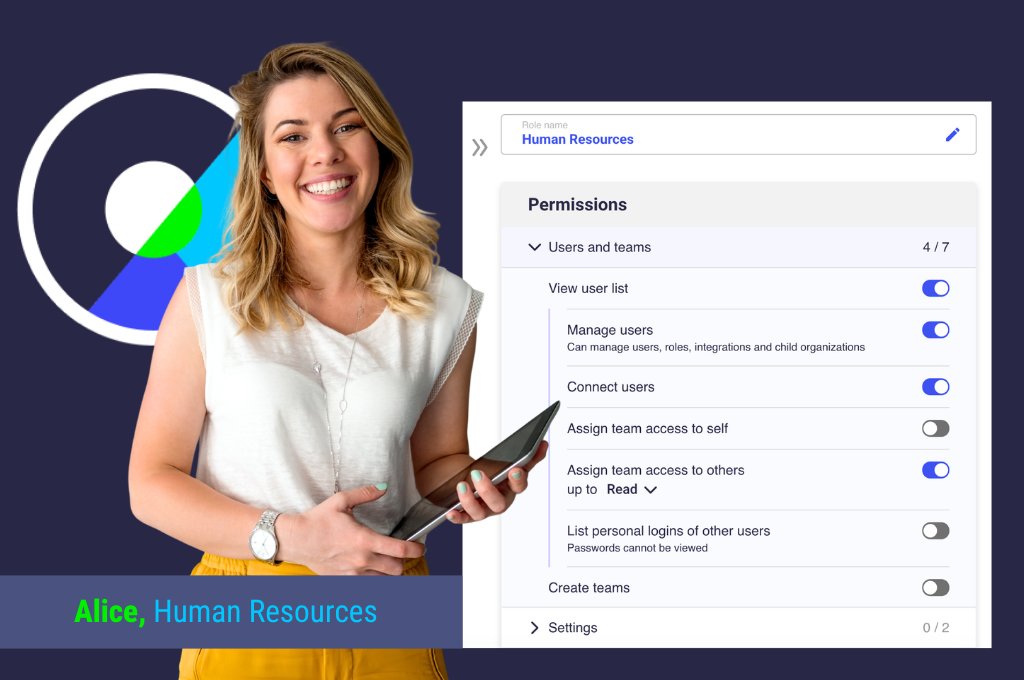
Our first fictional co-worker is Alice. She holds a senior position in Human Resources.
Her role is to manage the organization’s members – for example, assigning roles within the company or granting employees access to the appropriate team logins. As part of the recruitment process, she can also add or remove employees.
However, Alice is not authorized to make structural changes or monitor user behavior within the organization. Her permissions are deliberately limited to prevent this.
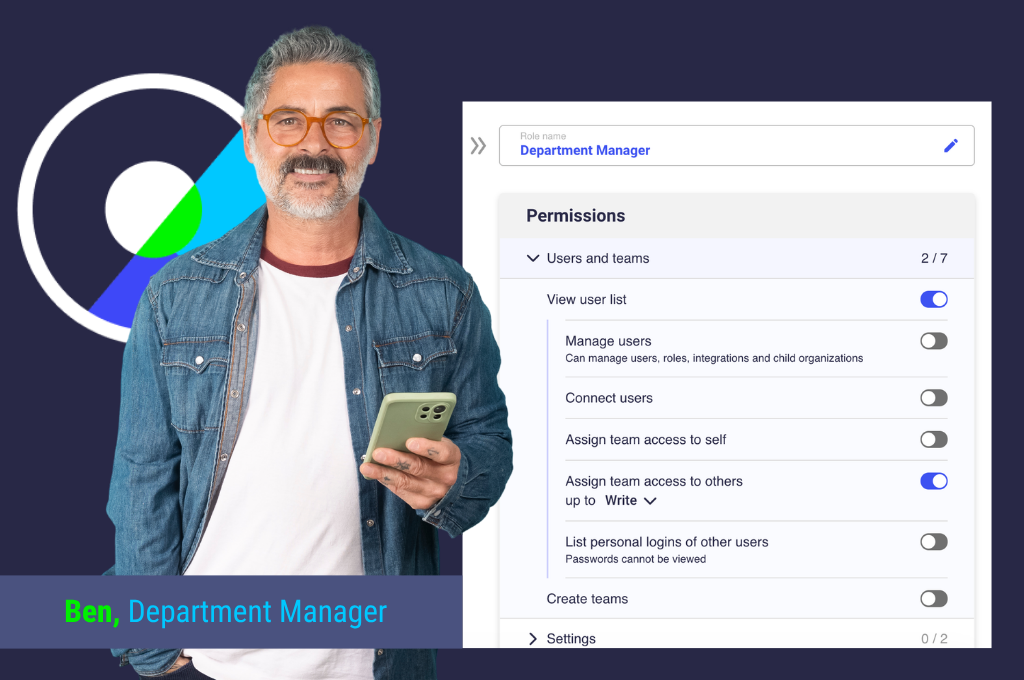
In our example, Ben is a Department manager with significant responsibility for employees.
He serves as an important link between senior management and the employees in his department.
Ben primarily needs permission to grant team access. Depending on the person’s position, Ben may also be responsible for granting more than read-only access, allowing employees to edit team logins. This way, he can relieve the IT department by taking some of the workload off its ticket system.
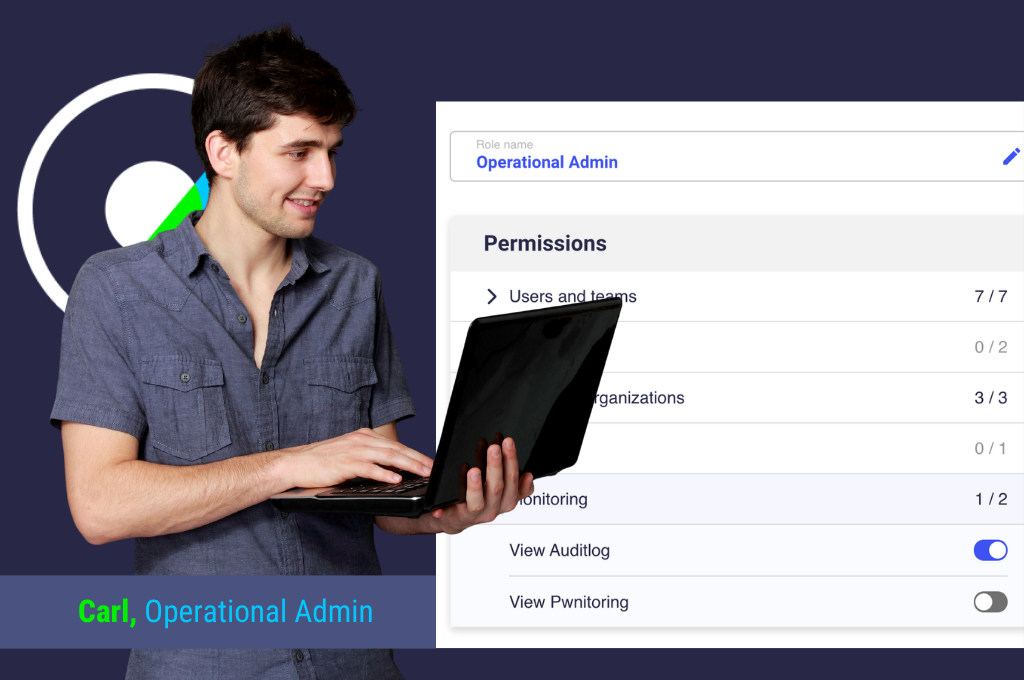
Carl, an Operational Admin, completes our fictional trio.
He is part of the IT department's help desk. In this role, Carl has almost all of the permissions of the admin described above.
His permissions are as follows:
- He can manage all users and organizations.
- He can view the audit log.
The following areas are disabled for him:
- He cannot change the account settings or plan.
- He cannot export logins.
- He does not have access to Pwnitoring.
This allows Carl to easily take on many of the recurring operational tasks that arise in the ticket system.
How you set up your custom roles (RBAC) is entirely up to you. You might use Alice, Ben, and Carl as inspiration – or you may come up with new role models that are perfectly tailored to your employees and their responsibilities.
As always, we look forward to your feedback and are happy to assist you with any questions you may have.
You can find answers to many common questions in our Help Center. Alternatively, you can get in touch with our support team.
Upgrade your plan to Enterprise now.